FTC disclaimer: This post contains affiliate links and I will be compensated if you make a purchase after clicking on my link.
Did you know the 502 Bad Gateway error is very common? It happens when a server gets a bad response from another server. This is often because the server is too busy or there’s a network problem.
Fixing the 502 proxy error can be tough. But with the right help, you can solve it easily. Whether you work in IT or just use websites, knowing how to fix this error is key for a good online experience.
In this guide, we’ll cover why the 502 proxy error happens. We’ll also show you how to fix it step by step. By the end, you’ll know how to troubleshoot and fix the 502 proxy error well.
Key Takeaways
- Understand the common causes of the 502 Bad Gateway error.
- Learn step-by-step troubleshooting techniques.
- Discover effective solutions to resolve the 502 proxy error.
- Gain insights into preventing future occurrences.
- Enhance your knowledge to maintain a smooth online experience.
What Is a 502 Proxy Error?
A 502 Bad Gateway error means the proxy server got a bad response from another server. This stops you from browsing smoothly. To get this, you need to know how proxy servers work and their role in connecting clients and servers.
Definition and Technical Explanation
A 502 proxy error happens when a proxy server can’t get a good response from a server it’s asking. This problem usually comes from the server side, not from you.
Proxy servers help manage traffic, save content, and make browsing safer. They connect your browser to the server, sending and getting messages.
How Proxy Servers Work
Proxy servers catch requests from you and send them to the server you want. They also save common content, so you don’t have to ask for it every time. This makes browsing faster and more efficient.
What Goes Wrong During a 502 Error
When a 502 error happens, the proxy server can’t get a good answer from the server it’s talking to. This could be because the server is too busy, there’s a network problem, or something is set up wrong. The proxy server then sends a 502 error to you, saying it can’t do what you asked.
Understanding how proxy servers work and why you get a 502 error can help you find and fix the problem. It might be a server issue or a setup mistake. Knowing what’s wrong is the first step to fixing it.
Common Causes of Proxy Error 502
To fix the 502 Proxy Error, we need to know why it happens. It often comes from server problems.
Server-Side Issues
Server problems are a big reason for the 502 Proxy Error. These problems can make the server not work right.
Overloaded Servers
One big problem is when servers get too many requests. This can make them slow or not work at all. Fixing this by making servers work better is key.
Server Software Problems
Another issue is problems with server software. Bugs or old software can make servers fail. Keeping software up to date is important.
Here’s a table showing server problems and how they cause 502 errors:
| Issue | Description | Potential Solution |
|---|---|---|
| Overloaded Servers | Server overwhelmed with requests | Optimize server performance, increase resources |
| Server Software Problems | Bugs, misconfigurations, or outdated software | Regularly update and maintain server software |
| Misconfigured Server Settings | Incorrect server configuration | Review and correct server settings |
Knowing why the 502 Proxy Error happens helps fix it. By fixing server problems, you can make your server reliable again.
Quick Fixes to Try First
Got a 502 proxy error? There are quick fixes to try before you dive into more complex steps. Sometimes, a simple action can fix the problem, saving you time.
Refresh Your Browser
Refreshing your browser is a simple and effective fix. It can solve the 502 error if it’s a temporary glitch. To refresh, click the refresh button or press F5 on your keyboard.
Hard Refresh Techniques
A hard refresh is even better. It reloads the page and clears its cache. To hard refresh, press Ctrl + F5 on Windows or Command + Shift + R on Mac. This makes sure you get the latest version of the webpage.
When to Wait Before Refreshing
Waiting a few seconds before refreshing can help. It lets any server-side issues resolve. Then, do a hard refresh to see if the error is still there.
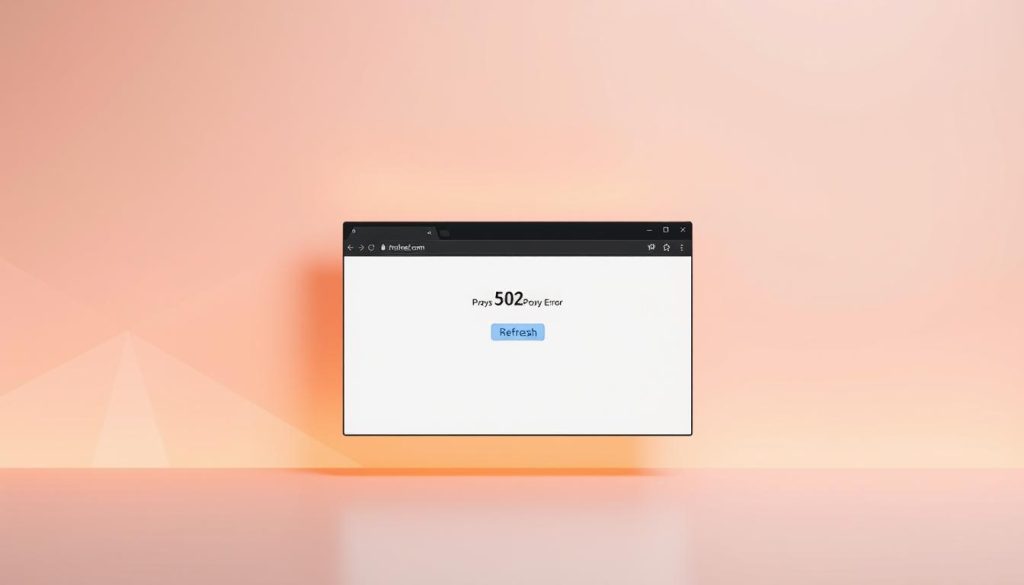
Trying these quick fixes might solve the 502 proxy error without needing more steps. If it doesn’t work, you’ll need to look into more detailed solutions.
Checking Your Internet Connection
Checking your internet connection is key to fixing a 502 proxy error. A good connection is vital for easy browsing and server talks. If your connection is shaky or gone, it can cause many errors, like the 502 proxy error.
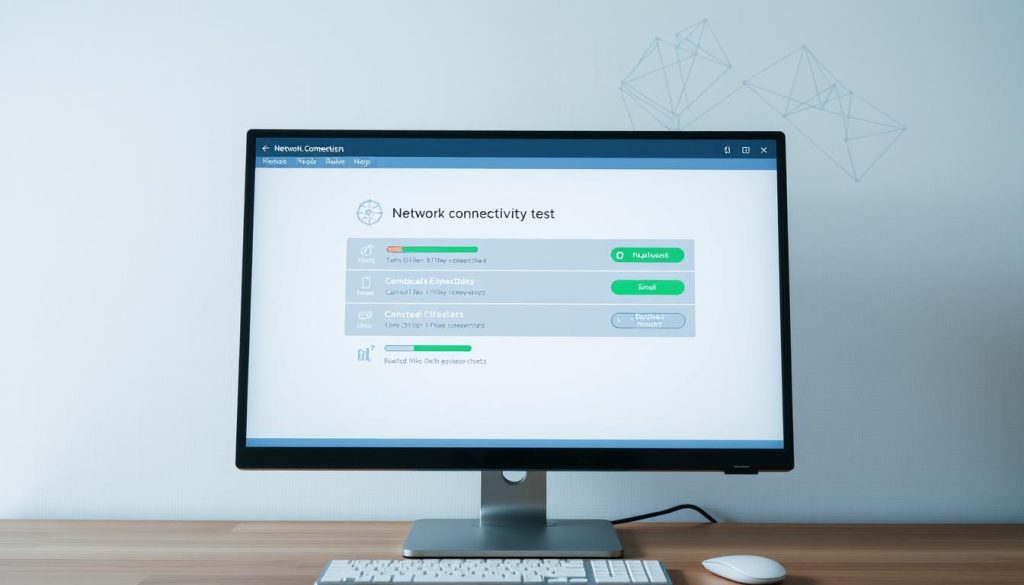
Testing Network Connectivity
To check your network, use simple but powerful tools. Testing your network shows if the problem is with your connection or somewhere else.
Using Ping and Traceroute Tools
Ping and traceroute are great for finding network problems. Ping sees if a server is online. Traceroute shows the path packets take, helping find where they fail.
Interpreting Test Results
When using ping and traceroute, watch for packet loss or big delays. High latency or loss means a network or server issue. Knowing this helps find the right fix.
By checking your internet and using ping and traceroute, you can spot and fix connection problems. This helps solve the 502 proxy error faster.
Understanding and Resolving Proxy Error 502
When you see a 502 Proxy Error, it’s key to find out why. This error can come from many places. So, it’s important to check it carefully.
Diagnosing the Root Cause
First, figure out if the problem is with your computer or the server. Knowing this helps you fix it right.
Client vs. Server Side Issues
Problems on your side might be with your browser or network. Server issues are with the proxy or the server it connects to. Knowing this helps you find the right solution.
Using Error Logs for Diagnosis
Error logs are great for finding the 502 Proxy Error’s cause. They show patterns or specific errors that help you find the problem. Look for logs from when the error happened.
Here are some steps to use error logs:
- Find recurring errors that show a constant problem.
- Match log entries with the error time to find the cause.
- Check if the server is too busy or running out of resources.
By carefully checking the cause and using error logs, you can fix the 502 Proxy Error.
Browser-Specific Solutions
Fixing a 502 proxy error in Chrome means looking at browser settings and possible problems. Each browser works differently with proxy servers. We’ll cover steps specific to Chrome here.
Chrome Troubleshooting Steps
To fix the 502 proxy error in Chrome, first check your network settings. Making sure your network is set up right often solves the problem.
Chrome Network Settings
Chrome’s network settings can be tweaked for smooth proxy server use. Go to Chrome’s settings, then “Advanced,” and then “System” or “Proxy settings.” Here, you can change or reset your proxy settings.
Extensions That May Cause Conflicts
Browser extensions can sometimes mess with Chrome’s proxy connection. Try turning off extensions one by one to see if any cause the 502 error. Ad blockers, VPN extensions, and security software are common troublemakers.
By taking these Chrome-specific steps, you can find and fix the 502 proxy error. Adjusting network settings or managing extensions can help get your connection back.
Adjusting Proxy Settings
Changing your proxy settings can fix the 502 proxy error. Your proxy settings help you connect to the internet. But, if they’re wrong, you might get errors.
Checking Current Proxy Configuration
To change your proxy settings, first check your current setup. Look for where your proxy settings are on your device.
Finding Proxy Settings in Different OS
Finding proxy settings is different for each operating system. On Windows, they’re in Internet Options. On macOS, they’re in Network preferences.
Identifying Incorrect Settings
After finding your proxy settings, see if they’re wrong. Check for any recent changes or settings that don’t fit your network needs.
Here’s a comparison of common proxy settings and their implications:
| Proxy Setting | Description | Implication |
|---|---|---|
| HTTP Proxy | Handles HTTP requests | May cause issues with HTTPS sites if not configured correctly |
| HTTPS Proxy | Handles HTTPS requests | Essential for secure connections, but can cause errors if misconfigured |
| SOCKS Proxy | Handles various types of traffic | Can be used for bypassing geo-restrictions, but may introduce latency |
By checking and adjusting your proxy settings, you can fix the 502 proxy error. Make sure you know what you’re doing to avoid more problems.
Advanced Troubleshooting for Website Owners
To fix a 502 proxy error, website owners need a detailed plan. They must look at server setup problems that might cause the error.
Server Configuration Issues
Server setup is key in avoiding 502 proxy errors. If it’s wrong, servers can’t talk right, leading to errors.
Nginx and Apache Settings
Websites on Nginx or Apache need their server settings checked. Make sure timeouts are right and proxy passes are correct. For example, tweaking proxy_read_timeout and proxy_send_timeout in Nginx can help fix 502 errors.
Load Balancer Configuration
Load balancers spread traffic but can cause 502 errors if set wrong. Check the load balancer to make sure it’s sending traffic right. Also, make sure the servers it’s sending to are working well.
Here’s a look at common server settings that affect 502 error fixes:
| Server Software | Configuration Setting | Impact on 502 Error |
|---|---|---|
| Nginx | proxy_read_timeout | Increasing this value can help if the backend server takes a long time to respond. |
| Apache | Timeout | Adjusting this directive can help manage how long Apache waits for a response from the backend. |
| Load Balancer | Health Check Interval | Reducing this interval can help detect backend server issues sooner. |
By looking at and tweaking these settings, website owners can often solve 502 proxy errors. It’s also smart to watch server logs for error messages. These can help guide the fixing process.
When to Contact Your ISP or System Administrator
The 502 proxy error can sometimes be beyond your control. You might need help from your ISP or system administrator. This is true when the problem is with the network or server setup.
Identifying Provider-Level Issues
To figure out if it’s your ISP or system administrator’s problem, look for signs. These signs show if it’s a network-wide issue.
Signs of Network-Wide Problems
Watch for widespread disruptions or reports from other users with the same problem. This could mean it’s a bigger issue at the ISP or network level.
Checking Service Status Pages
Many ISPs and system administrators have service status pages. These pages give updates on any known issues. Checking them can tell you if there’s a problem.
If you find a problem at the provider level, it’s time to contact your ISP or system administrator. They can give more details and help fix the 502 proxy error.
Conclusion
Understanding and fixing 502 proxy errors is key for a smooth web experience. This guide shows you how to find and solve the problem. It helps both website owners and users deal with 502 proxy errors.
Fixing 502 proxy errors means checking your internet, adjusting proxy settings, and looking at server issues. These steps help solve the problem and stop it from happening again. Finding the main cause is the first step to fixing 502 proxy errors.
Now you know how to fix 502 proxy errors. You can handle this problem with confidence. If you need more help, contact your ISP or system admin. With a few steps, you can enjoy a better online experience.