FTC disclaimer: This post contains affiliate links and I will be compensated if you make a purchase after clicking on my link.
Did you know millions of Android users face connectivity issues? This happens after updating their OS or using certain apps. For example, a Galaxy S4 Active user got a “Unable to connect to proxy server” error after updating to Android 4.3. This happened in the default browser and Chrome, even with proxy settings off.
Many users face proxy server errors for different reasons. This includes OS updates or app-specific issues. This article will help you fix these problems. It ensures you can browse smoothly on your Android device.
Key Takeaways
- Understand the causes of proxy server errors on Android devices.
- Learn how to troubleshoot proxy server issues.
- Discover steps to resolve proxy server errors after OS updates.
- Find out how to configure your Android device to avoid proxy server issues.
- Get tips on maintaining a stable connection on your Android device.
Understanding Proxy Server Errors on Android Devices
Proxy server errors on Android devices are common. They can be fixed by knowing how proxy servers work. When your Android device has a proxy server error, it’s important to understand its impact on your internet.
What is a Proxy Server?
A proxy server is like a middleman between your Android device and the internet. It hides your IP address, giving you privacy and security. Proxy servers are used for many things, like filtering content, caching, and getting around geo-restrictions. Knowing how a proxy server works is key to solving proxy errors.

Common Proxy Error Messages on Android
Proxy errors happen when there’s a problem between your device, the proxy server, and the website. Here are some common error messages you might see:
Error 105: Unable to connect to proxy server
This error means your device can’t connect to the proxy server. It might be because of wrong proxy settings or network problems.
Error 130: Proxy connection failed
Error 130 means the connection to the proxy server failed. This could be because of software problems or issues with the proxy server itself.
| Error Code | Description | Possible Cause |
|---|---|---|
| 105 | Unable to connect to proxy server | Incorrect proxy settings or network issues |
| 130 | Proxy connection failed | Software conflicts or proxy server issues |
Understanding these errors is the first step to solving them. By knowing what causes these errors, you can fix the problems and get your internet back.
Common Causes of Proxy Server Errors
Many things can cause proxy server errors on Android. This includes network problems and software issues. Knowing what causes these problems helps fix them.
Network Configuration Issues
Network problems often lead to proxy server errors. Misconfigured firewalls or incorrect DNS settings are common culprits. For example, if your firewall blocks the proxy server’s IP, you’ll see an error. Make sure your network settings are right to avoid these problems.
- Check your firewall settings to ensure they’re not blocking the proxy server.
- Verify your DNS settings to confirm they’re correctly set up.
Incorrect Proxy Settings
Wrong proxy settings on your Android can cause errors. If the proxy server address or port is wrong, your device can’t connect. Double-checking your proxy settings is key to getting them right.
Software Conflicts and Outdated System
Software issues or an old Android system can cause problems. Keeping your Android system and apps up to date is important. Updates often fix known problems, including proxy server issues.
- Regularly update your Android system to the latest version.
- Check for updates for your installed apps, as newer versions may resolve connectivity issues.
Quick Fixes to Resolve Proxy Server Errors
If you’re seeing a proxy server error on your Android, don’t panic. There are easy fixes you can try. These errors often get fixed with simple steps that don’t need tech skills.
Restart Your Android Device
One simple fix is to restart your Android. This can fix many problems, including proxy server errors. It clears out temporary issues and refreshes your network.
Toggle Airplane Mode
Turning Airplane Mode on and off can also help. It resets your network connections. To do this, go to your device’s Quick Settings panel and tap the Airplane Mode icon.
Check Your Internet Connection
A stable internet connection is key to avoiding proxy server errors. Open a web browser and try to visit a website to check your connection.
Testing alternative networks
If Wi-Fi isn’t working, try mobile data or vice versa. This can show if the problem is with Wi-Fi or mobile data.
Verifying network stability
Make sure your network is stable. Check your signal strength and see if your internet service provider is down.
| Troubleshooting Step | Description | Expected Outcome |
|---|---|---|
| Restart Device | Restart your Android device to clear temporary glitches. | Proxy server error resolved |
| Toggle Airplane Mode | Turn Airplane Mode on and off to reset network connections. | Network connections refreshed |
| Check Internet Connection | Verify the stability of your internet connection. | Stable internet connection |
By trying these quick fixes, you might solve the proxy server error on your Android. You won’t need to get into complex troubleshooting or settings changes.
How to Fix Proxy Server Error for Android Through WiFi Settings
To fix proxy server errors on Android, just go to your WiFi settings. You’ll need to change the proxy settings and test them. This should fix the error.
Accessing WiFi Settings on Android 10 and Above
For Android 10 and later, finding WiFi settings is easy. Open your Settings app, then pick Network & Internet or Connections. Tap WiFi and then your current network. This opens the network’s detailed settings.
Modifying Proxy Configuration
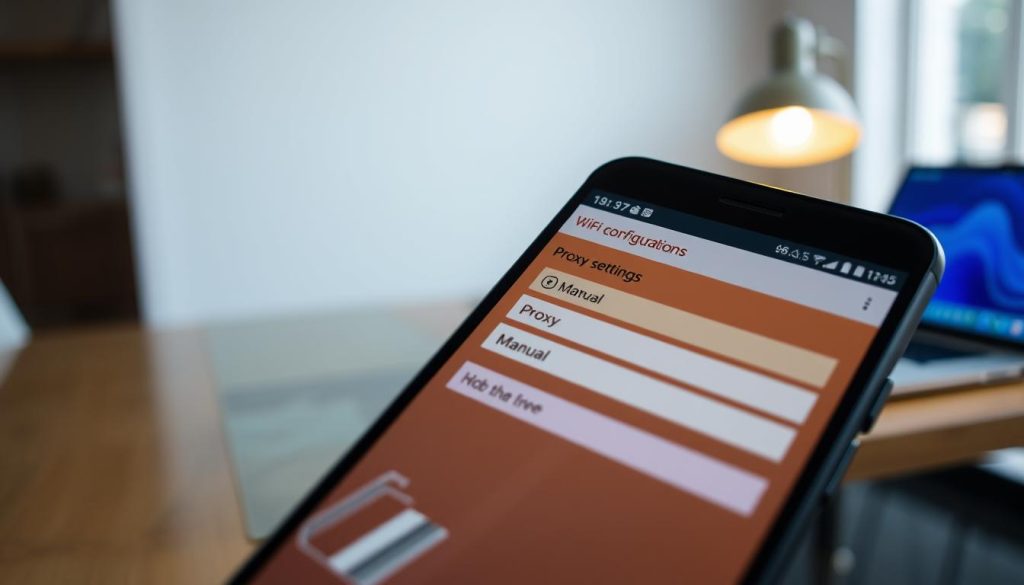
Once in WiFi settings, you can change the proxy. You have two choices: set it to “None” or enter a manual proxy.
Setting to “None”
To set it to “None,” just pick “None” from the menu. This turns off any proxy for that WiFi network. It might fix the error.
Manual proxy configuration
If “None” doesn’t work, or if you need a proxy, set it manually. You’ll need the proxy server’s hostname and port number. Put these in the fields and save your changes.
Saving and Testing Your Changes
After changing the proxy settings, save them and test. Save the changes and try the internet or the service that was blocked. If it still doesn’t work, check your proxy settings again or try other fixes.
By making these changes, you should fix proxy server errors on your Android. Whether you disable the proxy or set it manually, these steps can help get your internet working again.
Adjusting APN Settings to Resolve Proxy Issues
Proxy server problems on Android can be fixed by changing the Access Point Name (APN) settings. The APN lets your device connect to the internet and other services. If it’s wrong, you might see proxy server errors.
Locating APN Settings on Different Android Versions
Finding APN settings changes a bit with each Android version. You can usually find them in “Connections” or “Wireless & Networks” in your settings. For Android 10 and up, go to “Settings” > “Connections” > “Mobile networks” > “Access Point Names.”
Modifying APN Proxy Settings
After finding the APN settings, you can change the proxy settings. Tap on the active APN and look for “Proxy” or “Proxy server.” Here, put in the right proxy server address and port number from your network or IT.
Creating a New APN Profile
If changing the APN doesn’t help, you might need a new APN profile. Go to the APN settings and choose “Add a new APN” or “New APN.”
Required fields for proper configuration
When making a new APN, you’ll need to fill in some fields. These include APN name, APN type, and Proxy settings. Make sure you have the right info from your network provider.
Changing the APN settings can fix proxy server problems on your Android. You can either tweak the current APN or make a new one.
Clearing Cache and Data to Fix Proxy Server Problems
Clearing cache and data can fix proxy server issues on Android. It removes bad data that might cause problems. This helps fix connectivity issues.
Clearing Browser Cache and Data
Clearing your browser’s cache and data is easy. Go to your browser’s settings. Find the option to clear browsing data. Choose to clear cached images and files.
Tip: Clearing browser data logs you out of websites. You’ll need to log back in.
Clearing System Cache
Clearing the system cache can also solve proxy server problems. Go to your device’s Settings. Then, to Storage, and find the cache-clearing option. The steps vary by Android version.
Resetting App Preferences
Resetting app preferences can fix proxy server settings issues. Go to Settings, then to Apps. Look for the reset app preferences option. This resets all app settings to default.
Impact on App Settings
Resetting app preferences resets settings like disabled apps and notification restrictions. But, it won’t delete any app data.
What Data Remains Untouched
Resetting app preferences doesn’t touch your personal data. It keeps emails, messages, and photos safe. It only resets app preferences you’ve set.
Clearing cache and data, and resetting app preferences can fix proxy server issues. These steps help your device run smoothly. They also reduce connectivity problems.
Resolving Proxy Authentication Errors
Fixing proxy authentication errors is key for a smooth internet connection on Android. These errors happen when your device can’t connect to the proxy server. This is often because of wrong login details or settings.
Understanding Authentication Requirements
To fix proxy authentication errors, you need to know what your proxy server needs. This includes the type of login, like a username and password. You also need to know about any special protocols or encryption.
- Check the proxy server’s documentation or contact your network administrator to understand the authentication requirements.
- Ensure your device is configured to use the correct authentication method.
Entering Correct Credentials
Getting the right login details is crucial for proxy authentication. Make sure you have the correct username and password. Also, enter them correctly in your device’s proxy settings.
Tips for entering credentials correctly:
- Double-check the username and password for typos or incorrect characters.
- Ensure that the credentials are up-to-date and have not been changed recently.
Troubleshooting Authentication Failures
If you keep getting authentication errors, there are steps you can take to fix them.
Contacting network administrator
If you can’t solve the problem yourself, reach out to your network administrator. They can help check if your device is set up right. They can also make sure your login details are correct.
App-Specific Proxy Settings and Troubleshooting
Setting up proxy settings for apps can fix Android authentication errors. Each app needs its own proxy settings to work right.
Chrome Browser Proxy Settings
To change Chrome’s proxy settings, open the browser. Then, go to Settings and tap “Advanced” or “System.” You’ll see the proxy settings there.
Firefox and Other Browsers
Firefox and other browsers let you change proxy settings. In Firefox, go to Settings, then “Advanced,” and “Network” to find proxy settings. Other browsers might have similar steps.
Email and Social Media Apps
Email and social media apps like Gmail, Facebook, and Instagram need special proxy settings. Let’s look at these settings more closely.
Gmail proxy configuration
For Gmail, you usually don’t need to set proxy settings unless you’re using a specific email client or a corporate email. In these cases, check with your email provider for the right proxy settings.
Facebook and Instagram network settings
Facebook and Instagram use your device’s default network settings. But, if problems happen, try checking the app’s data saver settings or your device’s proxy settings.
| App | Proxy Configuration |
|---|---|
| Chrome | Advanced Settings |
| Firefox | Advanced > Network |
| Gmail | Typically uses device settings |
| Facebook/Instagram | Uses device’s default network settings |
Advanced Solutions for Persistent Proxy Server Errors
Persistent proxy server errors on Android can be frustrating. But, there are advanced steps to fix proxy server error for android and solve android proxy server issues.
Using VPN to Bypass Proxy Issues
Using a Virtual Private Network (VPN) is a good way to bypass proxy issues. A VPN hides your IP address and encrypts your internet. This can solve proxy problems. To use a VPN, download a VPN app from the Google Play Store, install it, and connect to a VPN server. This is great if your proxy issues are network-related.
Network Settings Reset
Resetting your network settings can fix persistent proxy server errors. This resets all network settings to default. To reset, go to Settings > System > Reset options > Reset Wi-Fi, mobile & Bluetooth. This can fix issues with network settings.
Factory Reset as a Last Resort
If nothing works, a factory reset might be needed. This will erase all data, so back up first. A factory reset can fix deep software issues causing proxy errors.
Backing up your data
Before a factory reset, back up your important data. This includes contacts, photos, and documents. Use Google Drive or connect to a computer to back up. This prevents data loss.
Post-reset configuration
After a factory reset, set up your device again. You might need to re-enter proxy settings. Review your network settings to avoid future proxy errors.
Conclusion
You now know how to fix proxy server errors on your Android. This article showed you how to solve these problems. You can now browse without any issues.
First, check your WiFi settings. Then, change your proxy settings to fix the problem. You can also try adjusting APN settings, clearing cache, and fixing proxy authentication errors.
If these don’t work, think about using a VPN or resetting your network settings. These steps will help you solve android proxy server errors. You can use Chrome, Firefox, or other browsers without problems.